________________________________________________
________________________________________________
Latest Products

Raspberry Pi Type B

Rp.585.000,00
The Raspberry Pi is a credit-card sized computer that plugs into your TV and a keyboard. It’s a capable little PC which can be used for many of the things that your desktop PC does, like spreadsheets, word-processing and games. It also plays high-definition video. We want to see it being used by kids all over the world to learn programming.

Note: Per 15th October 2012, the Raspberry Pi Model B (Rev2) ships with 512MB RAM

Spesifikasi:

- Chip: Broadcom BCM2835 (CPU, GPU, DSP, and SDRAM)
- CPU: 700 MHz ARM1176JZF-S core (ARM6 family)
- GPU: Broadcom
- VideoCore IV, OpenGL ES 2.0, 1080p30 h.264/MPEG-4 AVC high-profile decoder
- Memory (SDRAM): 512 MB (shared with GPU)
- USB 2.0 ports: 2 (via integrated USB hub)
- Video outputs: Composite RCA (PAL & NTSC), HDMI (rev 1.3 & 1.4), raw
- LCD Panels via DSI 14 HDMI resolutions from 640×350 to 1920×1200 plus various PAL and NTSC standards.
- Audio outputs: 3.5 mm jack, HDMI
- Onboard storage: SD / MMC / SDIO card slot
- Onboard network: 10/100 Ethernet (RJ45)
- Low-level peripherals: 8 × GPIO, UART, I²C bus, SPI bus with two chip selects, +3.3 V, +5 V, ground[58][63]
- Power ratings: 700 mA (3.5 W)
- Power source: 5 volt via MicroUSB or GPIO header Size: 85.60 × 53.98 mm (3.370 × 2.125 in)
- Weight: 45 g (1.6 oz)
- Planned operating systems: Debian GNU/Linux, Fedora, Arch Linux ARM, RISC OS

For more information about the Raspberry Pi and the Raspberry Pi Foundation, visit the  Raspberry Pi Foundation’s Website: http://www.raspberrypi.org/
Rp.585.000,00
The Raspberry Pi is a credit-card sized computer that plugs into your TV and a keyboard. It’s a capable little PC which can be used for many of the things that your desktop PC does, like spreadsheets, word-processing and games. It also plays high-definition video. We want to see it being used by kids all over the world to learn programming.

Note: Per 15th October 2012, the Raspberry Pi Model B (Rev2) ships with 512MB RAM

Spesifikasi:

- Chip: Broadcom BCM2835 (CPU, GPU, DSP, and SDRAM)
- CPU: 700 MHz ARM1176JZF-S core (ARM6 family)
- GPU: Broadcom
- VideoCore IV, OpenGL ES 2.0, 1080p30 h.264/MPEG-4 AVC high-profile decoder
- Memory (SDRAM): 512 MB (shared with GPU)
- USB 2.0 ports: 2 (via integrated USB hub)
- Video outputs: Composite RCA (PAL & NTSC), HDMI (rev 1.3 & 1.4), raw
- LCD Panels via DSI 14 HDMI resolutions from 640×350 to 1920×1200 plus various PAL and NTSC standards.
- Audio outputs: 3.5 mm jack, HDMI
- Onboard storage: SD / MMC / SDIO card slot
- Onboard network: 10/100 Ethernet (RJ45)
- Low-level peripherals: 8 × GPIO, UART, I²C bus, SPI bus with two chip selects, +3.3 V, +5 V, ground[58][63]
- Power ratings: 700 mA (3.5 W)
- Power source: 5 volt via MicroUSB or GPIO header Size: 85.60 × 53.98 mm (3.370 × 2.125 in)
- Weight: 45 g (1.6 oz)
- Planned operating systems: Debian GNU/Linux, Fedora, Arch Linux ARM, RISC OS

For more information about the Raspberry Pi and the Raspberry Pi Foundation, visit the  Raspberry Pi Foundation’s Website: http://www.raspberrypi.org/
Detail

Raspberry Pi - Model A (256MB)

Rp.456.000,00

Raspberry Pi Model A merupakan varian dari modul Raspberry yang lebih diperuntukkan pada aplikasi dengan konsumsi daya yang lebih rendah serta harga yang lebih terjangkau. Konsumsi daya yang lebih rendah dari Raspberry Pi Model B didapatkan dari pemangkasan beberapa fitur yaitu: ukuran RAM yang lebih kecil (256 MB), jumlah USB port (1 buah), serta tidak adanya port ethernet. Selain dari perbedaan fitur yang disebutkan, pengoperasian modul Raspberry Pi Model A ini sama persis dengan Raspberry Pi Model B.

Spesifikasi :
- Catu daya : 5 VDC, 300 mA (via micro USB)
- Berbasis mikrokontroler/mikroprosesor : ARM1176JZF-S core, 700 MHz
- Jumlah port I/O : 8 pin GPIO
- Port antarmuka : UART TTL, SPI, I2C, USB, Composite RCA, 3.5 mm jack, LCD Panels via DSI, CSI(Camera Serial Interface), HDMI
- Bootloader : melalaui OS berbasis LINUX
- Fitur : Memory 256 MB, 1 USB PORT, Graphics Broadcom VideoCore IV , SD Card Slot
- Dimensi : 85.60mm(L) x 56mm(W) x 21mm(H)

For more information about the Raspberry Pi and the Raspberry Pi Foundation, visit the  Raspberry Pi Foundation’s Website: http://www.raspberrypi.org/
Rp.456.000,00

Raspberry Pi Model A merupakan varian dari modul Raspberry yang lebih diperuntukkan pada aplikasi dengan konsumsi daya yang lebih rendah serta harga yang lebih terjangkau. Konsumsi daya yang lebih rendah dari Raspberry Pi Model B didapatkan dari pemangkasan beberapa fitur yaitu: ukuran RAM yang lebih kecil (256 MB), jumlah USB port (1 buah), serta tidak adanya port ethernet. Selain dari perbedaan fitur yang disebutkan, pengoperasian modul Raspberry Pi Model A ini sama persis dengan Raspberry Pi Model B.

Spesifikasi :
- Catu daya : 5 VDC, 300 mA (via micro USB)
- Berbasis mikrokontroler/mikroprosesor : ARM1176JZF-S core, 700 MHz
- Jumlah port I/O : 8 pin GPIO
- Port antarmuka : UART TTL, SPI, I2C, USB, Composite RCA, 3.5 mm jack, LCD Panels via DSI, CSI(Camera Serial Interface), HDMI
- Bootloader : melalaui OS berbasis LINUX
- Fitur : Memory 256 MB, 1 USB PORT, Graphics Broadcom VideoCore IV , SD Card Slot
- Dimensi : 85.60mm(L) x 56mm(W) x 21mm(H)

For more information about the Raspberry Pi and the Raspberry Pi Foundation, visit the  Raspberry Pi Foundation’s Website: http://www.raspberrypi.org/
Detail

GSM/GPRS Shield V2.0

Rp.Discontinue

Introduction.
Hook your Arduino up to GSM/GPRS cell phone network with GPRS shield! You can use your Arduino to dial a phone number or send a text to your friend via easy to use AT commands now. This new version features a quad-band low power consumption GSM/GPRS module SIM900 as well as a compact PCB antenna. Meanwhile, improvements on interfaces and basic circuit have been taken to make it more concise and reliable. Check out the improvement details of V2.0.
Model:SLD01098P

Features

  • Compatible with standard Arduino and Arduino Mega
  • Selectable interface between hardware serial port and software serial port
  • Quad band support: 850/900/1800/1900MHz
  • Support TCP/UDP protocols
  • Full control via AT commands set: Standard - GSM 07.07 & 07.05 and Enhanced - SIMCOM AT Commands
  • 2-in-1 headset jack
  • Convenient external SIM card holder
  • Low power consumption: 1.5mA(sleep mode)
  • 3V CR1220 Battery Holder Connetor

Cautions

  • Make sure your SIM card is unlocked.
  • GPRS Shield doesn't come with ESD precautions. Take special care when handling it in dry weather.
  • The factory default setting for the GPRS Shield UART is 19200 bps 8-N-1. (Can be changed using AT commands).

Interface Function


GPRS Shield interface function.jpg

Antenna interface:  external antenna could be added here for expansion
Serial port select:  select either software serial port or hardware serial port as interface with Arduino
Hardware Serial:  D0 and D1 of Arduino/Seeeduino
Software serial:  D7 and D8 of Arduino/Seeeduino only
Status indicator:  tell whether SIM900 is on
Power-on indicator:  tell whether the GPRS Shield is on
Net indicator:  tell the status about SIM900 linking to the net
GPIO,PWM and ADC of SIM900:  GPIO,PWM and ADC pins breakout of SIM900
Headsets interface:  mic and earphone 2-in-1 interface
Power button:  turn on or off SIM900


Pins usage on Arduino
D0:  Used as RX of hardware serial port
D1:  Used as TX of hardware serial port
D7:  Used as RX of software serial port
D8:  Used as TX of software serial port
D9:  Used as software power button for SIM900
VIN:  Used if you select external 6.5V~12Vpower supply for the Arduino and GPRS Shield

LED Status Description

LED Status Function
Power-on indicator(Green) Off Power of GPRS Shield is off
On Power of GPRS Shield is on
Status Indicator(Red) Off Power off
On Power on
Net indicator(Green) Off SIM900 is not working
64ms On/800ms Off SIM900 does not find the network
64ms On/3000ms Off SIM900 finds the network
64ms On/300ms Off GPRS communication

Usage

As you receive the GPRS Shield, what would be the first thing you want to do with it? Send out a text (SMS)? Or call up someone (headset required)? You can do all of this by talking to the GPRS Shield using AT Commands - a special language that it understands.
AT Commands are simple textual commands sent to the GPRS modem over its serial interface (UART), so you can use any serial terminal software to communicate with it.

Hardware Installation

Follow the steps below to set up the hardware system.
1. Insert an unlocked SIM card to SIM Card Holder
A 6 Pin Holder for SIM Cards. Both 1.8 volts and 3.0 volts SIM Cards are supported by SIM900, the SIM card voltage type is automatically detected.

SIM Card1.JPGSIM Card2.JPG
2. Check the antenna
Make sure the antenna have installed properly in the antenna interface.

Check the antenna.jpg
3. Communication port configuration
The GPRS shield can be controlled via hardware serial port or software serial port of Arduino. Here we use the software serial port as default. Choose it by inserting jumper caps as below.
Sofeware Serial.jpg
Hardware Serial.jpg

4. Plug to Arduino
Stack the GPRS Shield onto Arduino.
Plug to Arduino.jpg
5. Power up Arduino
Power up Arduino by USB cable or DC Jack. The Power-on indicator LED should light up once connectted.
Power to SIM900.jpg


Fun with AT Commands

Let's have a try to control the GPRS shield with AT commands.
The GPRS Shield comes with all accessories that you need to get started with sending data over the GSM network except an Arduino board and a GSM SIM Card. If you want to make voice calls, you would also require a headset with microphone.
Step 1: Test Setup
1.Create a new Arduino sketch and paste the codes below to it.
//Serial Relay - Arduino will patch a 
//serial link between the computer and the GPRS Shield
//at 19200 bps 8-N-1
//Computer is connected to Hardware UART
//GPRS Shield is connected to the Software UART 
 
#include <SoftwareSerial.h>
 
SoftwareSerial GPRS(7, 8);
unsigned char buffer[64]; // buffer array for data recieve over serial port
int count=0;     // counter for buffer array 
void setup()
{
  GPRS.begin(19200);               // the GPRS baud rate   
  Serial.begin(19200);             // the Serial port of Arduino baud rate.
 
}
 
void loop()
{
  if (GPRS.available())              // if date is comming from softwareserial port ==> data is comming from gprs shield
  {
    while(GPRS.available())          // reading data into char array 
    {
      buffer[count++]=GPRS.read();     // writing data into array
      if(count == 64)break;
  }
    Serial.write(buffer,count);            // if no data transmission ends, write buffer to hardware serial port
    clearBufferArray();              // call clearBufferArray function to clear the storaged data from the array
    count = 0;                       // set counter of while loop to zero
 
 
  }
  if (Serial.available())            // if data is available on hardwareserial port ==> data is comming from PC or notebook
    GPRS.write(Serial.read());       // write it to the GPRS shield
}
void clearBufferArray()              // function to clear buffer array
{
  for (int i=0; i<count;i++)
    { buffer[i]=NULL;}                  // clear all index of array with command NULL
}
2. Upload the code to Arduino. If you do not know how to upload the code, please click here.
3. Download and fire up serial tool if you don't have one. Choose the correct COM port for Arduino, and set it to operate at 19200 8-N-1 and then click "Open Com". You can also use AT Command Tester to send AT commands. Please click here if you are interesting in it.
4. Power up the SIM900 by pressing the power button in about 2 seconds. The red LED will be on. The green one beside it will blink. If the shield join the network sucessfully, the green LED will blink every 3 seconds.
Power to SIM900.jpg

5. You should find the message on the serial monitor as below which is sent by the SIM900 to inform you it has joined the network:
RDY 

+CFUN: 1 

+CPIN: READY 

Call Ready 
If you can not see the messages in the serial monitor, you should click the "send new" option that will add carriage return at the end of AT command and then send AT command "AT+IPR=19200" to set the baud rate of the SIM900.
GPRS set baud rate.jpg

Notice: How AT commands control the GPRS Shield
The ATmega328P microcontroller on Duemilanove board has only one UART which is used for communicating with the PC. What we need is an Arduino Sketch running inside the ATmega328P that would emulate a second serial port (UART) using software on the digital pins D8 and D7 and patch through all the communication between this second software serial port and the actual hardware serial port. By doing this, all the data coming from the computer (connected to the actual hardware UART) would be routed to the GPRS Shield (connected to software UART) then, we would be able to issue AT commands to control the GPRS Shield. The block diagram outlining this scheme is shown below.
GPRS aurduino uart.jpg

Step 2: Send A Text Message(SMS)
Based on step 1, now we try to send a text message by using AT commands.
  1. The GPRS Shield can send SMSes in two modes: Text mode and PDU (or binary) mode. To send out a human readable message, select the text mode by sending AT command "AT+CMGF=1". If succeeds, The GPRS Shield will respond with an OK.
  2. To enter the number of your target phone, tick "SendNew" option and send AT+CMGS="136*****556". This will instruct the GPRS Shield to send a new message to the phone number specified (replace the number with the phone number of your target phone). The GPRS Shield will send a> to remind you of typing the message. Please note that phone number specified as parameter in any AT command must be in E.123 format.
  3. After entering your message, tick "send hex" option and then send a hex: 1A. The modem will accept the message and respond with an OK. A few moments later, the message should be received on the handset whose number you had specified. I sent "How are you ?". You can check the histroy by clicking "EXT". The commands histroy is listed below "Set Multi Char".
    Send a text message.jpg
    NOTE: If, in spite of following the steps as specified above, you're unable to receive the message on the target handset, you might need to set the SMS Message Center number. Send the following command between the AT+CMGF and AT+CMGS commands:AT+CSCA="+919032055002". Replace the phone number specified with the SMS Center number of your GSM Service Provider. The message center number is specific to each service provider. You can get the message center number by calling up the customer care center of the GSM Service Provider and asking them for it.
Step 3: Make a telephone call with the AT commands

  1.  Restart the SIM900 if switching from sending texts to making phone calls.
  2.  Replace the phone number with your target number in the command “ATD186*****308;”(without the quotes) and press Enter key to send it out. If it succeds, a message "ATH OK" will show up as the picture below. Otherwise, "No CRRLIER" will show up instead. The reason might be unexistent phone number or incorrect command format.
    Make a calling.jpg
Step 4: Exploring Further
Now that you have gotten a taste of how the AT Commands work, you can try out some more of them by moving on to developing sketches for Arduino to use the GPRS Shield. This involves creating a sketch to send out a sequence of AT Commands to the GPRS Shield to perform tasks as sending an SMS, making a call or sending data over a GPRS connection. You can go through the AT Commands reference manual to figure out the sequence of commands required to do a particular task. If while developing an Arduino sketch, you find that the GPRS Shield doesn't execute what you have expected, check the AT Commands you sent to find out whether the spelling or sequence gets wrong. To do this, reload the serial relay sketch attached above in step 1 and type out the AT Commands manually and check the output. The responses sent by the GPRS Shield will help you debug the AT Command sequence.

A Simple Source Code Examples for phone calls and sending text messages

The demo code below is for the Xduino to send SMS message/dial a voice call. It has been tested on Arduino Duemilanove but will work on any compatible variant. Please note that this sketch uses the software UART of ATmega328P. So follow the steps below for running this sketch.
1. Follow the hardware installation steps to set up the hardware system.
2. Create an Arduino project and paste the program below to it. Replace the following items in the code:
1) Phone number. Replace the number “+86186*****308”(+86:China code) with the phone number of the target phone, don't forget add the country code.
2) The content of the message. Change the content “How are you ?” to what you want to send.
 /*Note: this code is a demo for how to using GPRS Shield to send SMS message and dial a voice call.

The microcontrollers Digital Pin 7 and hence allow unhindered communication with GPRS Shield using SoftSerial Library. 
IDE: Arduino 1.0 or later */
 
 
#include <SoftwareSerial.h>
#include <String.h>
 
SoftwareSerial mySerial(7,8);
 
void setup()
{
  mySerial.begin(19200);               // the GPRS baud rate   
  Serial.begin(19200);    // the GPRS baud rate 
  delay(500);
}
 
void loop()
{
  //after start up the program, you can using terminal to connect the serial of gprs shield,
  //if you input 't' in the terminal, the program will execute SendTextMessage(), it will show how to send a sms message,
  //if input 'd' in the terminal, it will execute DialVoiceCall(), etc.
 
  if (Serial.available())
    switch(Serial.read())
   {
     case 't':
       SendTextMessage();
       break;
     case 'd':
       DialVoiceCall();
       break;
     
   } 
  if (mySerial.available())
    Serial.write(mySerial.read());
}
 
///SendTextMessage()
///this function is to send a sms message
void SendTextMessage()
{
  mySerial.print("AT+CMGF=1\r");    //Because we want to send the SMS in text mode
  delay(100);
  mySerial.println("AT + CMGS = \"+86186*****308\"");//send sms message, be careful need to add a country code before the cellphone number
  delay(100);
  mySerial.println("How are you ?");//the content of the message
  delay(100);
  mySerial.println((char)26);//the ASCII code of the ctrl+z is 26
  delay(100);
  mySerial.println();
}
 
///DialVoiceCall
///this function is to dial a voice call
void DialVoiceCall()
{
  mySerial.println("ATD + +86186*****308;");//dial the number
  delay(100);
  mySerial.println();
}
 
void ShowSerialData()
{
  while(mySerial.available()!=0)
    Serial.write(mySerial.read());
}

3. Upload the code. If you input't', your GPRS shield will send a SMS message to the target cellphone. If you input'd', the program will dial a call to the target cell phone.
4. If the program returns error in the terminal after you typed the command, don't worry, just try input the command again.

Improvement Details of GPRS Shield V2.0

Appearance Change


GPRS shield v1.4.jpg

GPRS ShieldV2.0.jpg
1) V2.0 adopts a standard shield outline as well as a protective shell;
2) Duck antenna is replaced by a compact PCB antenna;
3) Mic and earphone interfaces are replaced by 2-in-1 headset jack on V2.0.


Power Circuitry Change

Replace the original LDO circuitry with DC-DC circuitry. Heat dissipation gets lower and efficiency gets higher up to 80%+. Meanwhile, the EXT_PWR jack on V1.0 was removed. V2.0 can draw current directly from Arduino now without additional 5V adapter.


GPRS Power circuit.jpg

Soft Start Circuitry

Soft start circuitry is added in the new version to smooth out the power shock at the moment the shield turns on, preventing the shield from unexpected reset issue.

Soft-start circuit.jpg

Below is how power shock affects the 5V pin of Arduino:

GPRS Soft-Start Circuit effect2.jpg


The blue line is the 5V signal from Arduino and the yellow is the power pin of GPRS shield V1.0. The blue line drops significantly down to 1.08V at the moment the GPRS shield turns on, which finally results in a system reset because it outlasts 3ms.
The same process on the new version:

GPRS Soft-Start Circuit effect1.jpg


This time the power-on only causes a pulse in small magnitude. No reset turns up because the pulse only lasts about 1us.
Next let's have a look at the startup situation of the soft start circuitry. The red line below represents the wire between the Q5 and D2:

GPRS Soft-Start Circuit effect3.jpg

The signal is relativly flat. There are about 2.5s charging time for GPRS shield. In this time scale, there is no noticable shake of the 5V signal of Arduino.

Antenna Revision

The maximum transit power of SIM900 is 30dBm(1w). However the output power of V1.0 is only 0.4W. In this new version, transit power is turned up to 29dBm above(0.8w+), giving you more reliable and firm signal transmission.


Resource

GPRS Shield Eagle File
GPRS Shield V2 Schematic.pdf
SIM900 Datasheeet
AT Commands v1.00 & AT Commands v1.03 & Hardware Design - SIM900 Documentation
SIM900 firmware and tool(firmware:1137B08SIM900M64_ST) for firmware upgrade
SIM_900_AGPS_instructionsSIM_900_AGPS_instructions
Rp.Discontinue

Introduction.
Hook your Arduino up to GSM/GPRS cell phone network with GPRS shield! You can use your Arduino to dial a phone number or send a text to your friend via easy to use AT commands now. This new version features a quad-band low power consumption GSM/GPRS module SIM900 as well as a compact PCB antenna. Meanwhile, improvements on interfaces and basic circuit have been taken to make it more concise and reliable. Check out the improvement details of V2.0.
Model:SLD01098P

Features

  • Compatible with standard Arduino and Arduino Mega
  • Selectable interface between hardware serial port and software serial port
  • Quad band support: 850/900/1800/1900MHz
  • Support TCP/UDP protocols
  • Full control via AT commands set: Standard - GSM 07.07 & 07.05 and Enhanced - SIMCOM AT Commands
  • 2-in-1 headset jack
  • Convenient external SIM card holder
  • Low power consumption: 1.5mA(sleep mode)
  • 3V CR1220 Battery Holder Connetor

Cautions

  • Make sure your SIM card is unlocked.
  • GPRS Shield doesn't come with ESD precautions. Take special care when handling it in dry weather.
  • The factory default setting for the GPRS Shield UART is 19200 bps 8-N-1. (Can be changed using AT commands).

Interface Function


GPRS Shield interface function.jpg

Antenna interface:  external antenna could be added here for expansion
Serial port select:  select either software serial port or hardware serial port as interface with Arduino
Hardware Serial:  D0 and D1 of Arduino/Seeeduino
Software serial:  D7 and D8 of Arduino/Seeeduino only
Status indicator:  tell whether SIM900 is on
Power-on indicator:  tell whether the GPRS Shield is on
Net indicator:  tell the status about SIM900 linking to the net
GPIO,PWM and ADC of SIM900:  GPIO,PWM and ADC pins breakout of SIM900
Headsets interface:  mic and earphone 2-in-1 interface
Power button:  turn on or off SIM900


Pins usage on Arduino
D0:  Used as RX of hardware serial port
D1:  Used as TX of hardware serial port
D7:  Used as RX of software serial port
D8:  Used as TX of software serial port
D9:  Used as software power button for SIM900
VIN:  Used if you select external 6.5V~12Vpower supply for the Arduino and GPRS Shield

LED Status Description

LED Status Function
Power-on indicator(Green) Off Power of GPRS Shield is off
On Power of GPRS Shield is on
Status Indicator(Red) Off Power off
On Power on
Net indicator(Green) Off SIM900 is not working
64ms On/800ms Off SIM900 does not find the network
64ms On/3000ms Off SIM900 finds the network
64ms On/300ms Off GPRS communication

Usage

As you receive the GPRS Shield, what would be the first thing you want to do with it? Send out a text (SMS)? Or call up someone (headset required)? You can do all of this by talking to the GPRS Shield using AT Commands - a special language that it understands.
AT Commands are simple textual commands sent to the GPRS modem over its serial interface (UART), so you can use any serial terminal software to communicate with it.

Hardware Installation

Follow the steps below to set up the hardware system.
1. Insert an unlocked SIM card to SIM Card Holder
A 6 Pin Holder for SIM Cards. Both 1.8 volts and 3.0 volts SIM Cards are supported by SIM900, the SIM card voltage type is automatically detected.

SIM Card1.JPGSIM Card2.JPG
2. Check the antenna
Make sure the antenna have installed properly in the antenna interface.

Check the antenna.jpg
3. Communication port configuration
The GPRS shield can be controlled via hardware serial port or software serial port of Arduino. Here we use the software serial port as default. Choose it by inserting jumper caps as below.
Sofeware Serial.jpg
Hardware Serial.jpg

4. Plug to Arduino
Stack the GPRS Shield onto Arduino.
Plug to Arduino.jpg
5. Power up Arduino
Power up Arduino by USB cable or DC Jack. The Power-on indicator LED should light up once connectted.
Power to SIM900.jpg


Fun with AT Commands

Let's have a try to control the GPRS shield with AT commands.
The GPRS Shield comes with all accessories that you need to get started with sending data over the GSM network except an Arduino board and a GSM SIM Card. If you want to make voice calls, you would also require a headset with microphone.
Step 1: Test Setup
1.Create a new Arduino sketch and paste the codes below to it.
//Serial Relay - Arduino will patch a 
//serial link between the computer and the GPRS Shield
//at 19200 bps 8-N-1
//Computer is connected to Hardware UART
//GPRS Shield is connected to the Software UART 
 
#include <SoftwareSerial.h>
 
SoftwareSerial GPRS(7, 8);
unsigned char buffer[64]; // buffer array for data recieve over serial port
int count=0;     // counter for buffer array 
void setup()
{
  GPRS.begin(19200);               // the GPRS baud rate   
  Serial.begin(19200);             // the Serial port of Arduino baud rate.
 
}
 
void loop()
{
  if (GPRS.available())              // if date is comming from softwareserial port ==> data is comming from gprs shield
  {
    while(GPRS.available())          // reading data into char array 
    {
      buffer[count++]=GPRS.read();     // writing data into array
      if(count == 64)break;
  }
    Serial.write(buffer,count);            // if no data transmission ends, write buffer to hardware serial port
    clearBufferArray();              // call clearBufferArray function to clear the storaged data from the array
    count = 0;                       // set counter of while loop to zero
 
 
  }
  if (Serial.available())            // if data is available on hardwareserial port ==> data is comming from PC or notebook
    GPRS.write(Serial.read());       // write it to the GPRS shield
}
void clearBufferArray()              // function to clear buffer array
{
  for (int i=0; i<count;i++)
    { buffer[i]=NULL;}                  // clear all index of array with command NULL
}
2. Upload the code to Arduino. If you do not know how to upload the code, please click here.
3. Download and fire up serial tool if you don't have one. Choose the correct COM port for Arduino, and set it to operate at 19200 8-N-1 and then click "Open Com". You can also use AT Command Tester to send AT commands. Please click here if you are interesting in it.
4. Power up the SIM900 by pressing the power button in about 2 seconds. The red LED will be on. The green one beside it will blink. If the shield join the network sucessfully, the green LED will blink every 3 seconds.
Power to SIM900.jpg

5. You should find the message on the serial monitor as below which is sent by the SIM900 to inform you it has joined the network:
RDY 

+CFUN: 1 

+CPIN: READY 

Call Ready 
If you can not see the messages in the serial monitor, you should click the "send new" option that will add carriage return at the end of AT command and then send AT command "AT+IPR=19200" to set the baud rate of the SIM900.
GPRS set baud rate.jpg

Notice: How AT commands control the GPRS Shield
The ATmega328P microcontroller on Duemilanove board has only one UART which is used for communicating with the PC. What we need is an Arduino Sketch running inside the ATmega328P that would emulate a second serial port (UART) using software on the digital pins D8 and D7 and patch through all the communication between this second software serial port and the actual hardware serial port. By doing this, all the data coming from the computer (connected to the actual hardware UART) would be routed to the GPRS Shield (connected to software UART) then, we would be able to issue AT commands to control the GPRS Shield. The block diagram outlining this scheme is shown below.
GPRS aurduino uart.jpg

Step 2: Send A Text Message(SMS)
Based on step 1, now we try to send a text message by using AT commands.
  1. The GPRS Shield can send SMSes in two modes: Text mode and PDU (or binary) mode. To send out a human readable message, select the text mode by sending AT command "AT+CMGF=1". If succeeds, The GPRS Shield will respond with an OK.
  2. To enter the number of your target phone, tick "SendNew" option and send AT+CMGS="136*****556". This will instruct the GPRS Shield to send a new message to the phone number specified (replace the number with the phone number of your target phone). The GPRS Shield will send a> to remind you of typing the message. Please note that phone number specified as parameter in any AT command must be in E.123 format.
  3. After entering your message, tick "send hex" option and then send a hex: 1A. The modem will accept the message and respond with an OK. A few moments later, the message should be received on the handset whose number you had specified. I sent "How are you ?". You can check the histroy by clicking "EXT". The commands histroy is listed below "Set Multi Char".
    Send a text message.jpg
    NOTE: If, in spite of following the steps as specified above, you're unable to receive the message on the target handset, you might need to set the SMS Message Center number. Send the following command between the AT+CMGF and AT+CMGS commands:AT+CSCA="+919032055002". Replace the phone number specified with the SMS Center number of your GSM Service Provider. The message center number is specific to each service provider. You can get the message center number by calling up the customer care center of the GSM Service Provider and asking them for it.
Step 3: Make a telephone call with the AT commands

  1.  Restart the SIM900 if switching from sending texts to making phone calls.
  2.  Replace the phone number with your target number in the command “ATD186*****308;”(without the quotes) and press Enter key to send it out. If it succeds, a message "ATH OK" will show up as the picture below. Otherwise, "No CRRLIER" will show up instead. The reason might be unexistent phone number or incorrect command format.
    Make a calling.jpg
Step 4: Exploring Further
Now that you have gotten a taste of how the AT Commands work, you can try out some more of them by moving on to developing sketches for Arduino to use the GPRS Shield. This involves creating a sketch to send out a sequence of AT Commands to the GPRS Shield to perform tasks as sending an SMS, making a call or sending data over a GPRS connection. You can go through the AT Commands reference manual to figure out the sequence of commands required to do a particular task. If while developing an Arduino sketch, you find that the GPRS Shield doesn't execute what you have expected, check the AT Commands you sent to find out whether the spelling or sequence gets wrong. To do this, reload the serial relay sketch attached above in step 1 and type out the AT Commands manually and check the output. The responses sent by the GPRS Shield will help you debug the AT Command sequence.

A Simple Source Code Examples for phone calls and sending text messages

The demo code below is for the Xduino to send SMS message/dial a voice call. It has been tested on Arduino Duemilanove but will work on any compatible variant. Please note that this sketch uses the software UART of ATmega328P. So follow the steps below for running this sketch.
1. Follow the hardware installation steps to set up the hardware system.
2. Create an Arduino project and paste the program below to it. Replace the following items in the code:
1) Phone number. Replace the number “+86186*****308”(+86:China code) with the phone number of the target phone, don't forget add the country code.
2) The content of the message. Change the content “How are you ?” to what you want to send.
 /*Note: this code is a demo for how to using GPRS Shield to send SMS message and dial a voice call.

The microcontrollers Digital Pin 7 and hence allow unhindered communication with GPRS Shield using SoftSerial Library. 
IDE: Arduino 1.0 or later */
 
 
#include <SoftwareSerial.h>
#include <String.h>
 
SoftwareSerial mySerial(7,8);
 
void setup()
{
  mySerial.begin(19200);               // the GPRS baud rate   
  Serial.begin(19200);    // the GPRS baud rate 
  delay(500);
}
 
void loop()
{
  //after start up the program, you can using terminal to connect the serial of gprs shield,
  //if you input 't' in the terminal, the program will execute SendTextMessage(), it will show how to send a sms message,
  //if input 'd' in the terminal, it will execute DialVoiceCall(), etc.
 
  if (Serial.available())
    switch(Serial.read())
   {
     case 't':
       SendTextMessage();
       break;
     case 'd':
       DialVoiceCall();
       break;
     
   } 
  if (mySerial.available())
    Serial.write(mySerial.read());
}
 
///SendTextMessage()
///this function is to send a sms message
void SendTextMessage()
{
  mySerial.print("AT+CMGF=1\r");    //Because we want to send the SMS in text mode
  delay(100);
  mySerial.println("AT + CMGS = \"+86186*****308\"");//send sms message, be careful need to add a country code before the cellphone number
  delay(100);
  mySerial.println("How are you ?");//the content of the message
  delay(100);
  mySerial.println((char)26);//the ASCII code of the ctrl+z is 26
  delay(100);
  mySerial.println();
}
 
///DialVoiceCall
///this function is to dial a voice call
void DialVoiceCall()
{
  mySerial.println("ATD + +86186*****308;");//dial the number
  delay(100);
  mySerial.println();
}
 
void ShowSerialData()
{
  while(mySerial.available()!=0)
    Serial.write(mySerial.read());
}

3. Upload the code. If you input't', your GPRS shield will send a SMS message to the target cellphone. If you input'd', the program will dial a call to the target cell phone.
4. If the program returns error in the terminal after you typed the command, don't worry, just try input the command again.

Improvement Details of GPRS Shield V2.0

Appearance Change


GPRS shield v1.4.jpg

GPRS ShieldV2.0.jpg
1) V2.0 adopts a standard shield outline as well as a protective shell;
2) Duck antenna is replaced by a compact PCB antenna;
3) Mic and earphone interfaces are replaced by 2-in-1 headset jack on V2.0.


Power Circuitry Change

Replace the original LDO circuitry with DC-DC circuitry. Heat dissipation gets lower and efficiency gets higher up to 80%+. Meanwhile, the EXT_PWR jack on V1.0 was removed. V2.0 can draw current directly from Arduino now without additional 5V adapter.


GPRS Power circuit.jpg

Soft Start Circuitry

Soft start circuitry is added in the new version to smooth out the power shock at the moment the shield turns on, preventing the shield from unexpected reset issue.

Soft-start circuit.jpg

Below is how power shock affects the 5V pin of Arduino:

GPRS Soft-Start Circuit effect2.jpg


The blue line is the 5V signal from Arduino and the yellow is the power pin of GPRS shield V1.0. The blue line drops significantly down to 1.08V at the moment the GPRS shield turns on, which finally results in a system reset because it outlasts 3ms.
The same process on the new version:

GPRS Soft-Start Circuit effect1.jpg


This time the power-on only causes a pulse in small magnitude. No reset turns up because the pulse only lasts about 1us.
Next let's have a look at the startup situation of the soft start circuitry. The red line below represents the wire between the Q5 and D2:

GPRS Soft-Start Circuit effect3.jpg

The signal is relativly flat. There are about 2.5s charging time for GPRS shield. In this time scale, there is no noticable shake of the 5V signal of Arduino.

Antenna Revision

The maximum transit power of SIM900 is 30dBm(1w). However the output power of V1.0 is only 0.4W. In this new version, transit power is turned up to 29dBm above(0.8w+), giving you more reliable and firm signal transmission.


Resource

GPRS Shield Eagle File
GPRS Shield V2 Schematic.pdf
SIM900 Datasheeet
AT Commands v1.00 & AT Commands v1.03 & Hardware Design - SIM900 Documentation
SIM900 firmware and tool(firmware:1137B08SIM900M64_ST) for firmware upgrade
SIM_900_AGPS_instructionsSIM_900_AGPS_instructions
Detail

GPS/GPRS/GSM Shield V3.0

Rp.1.370.000,00


Introduction
This is a GPS/GPRS/GSM shield from DFRobot. This shield with a Quad-band GSM/GPRS engine works on frequencies EGSM 900MHz/DCS 1800MHz and GSM850 MHz/PCS 1900MHz. It also supports GPS technology for satellite navigation. It's possible for your robot and control system to send messages and use the GSM network.
It is controlled via AT commands(GSM07.07 ,07.05 and SIMCOM enhanced AT Commands). And the design of this shield allows you to drive the GSM & GPS function directly with the computer and the Arduino Board. It includes a high-gain SMD antenna for GPS & GSM.
This GPS/GPRS/GSM shield uses an embedded SIM908 chip from SIMCom.Featuring an industry-standard interface and GPS function, the combination of both technologies allows goods, vehicles and people to be tracked seamlessly at any location and anytime with signal coverage.
Specification
  • Power supply: 6-12v
  • Low power consumption (100mA@7v - GSM mode)
  • Quad-Band 850/900/18001900MHz
  • GPRS multi-slot class 10
  • GPRS mobile station class B
  • Compliant to GSM phase 2/2+
  • Class 4 (2 W @ 850/900 MHz)
  • Class 1 (1 W @ 1800/1900MHz)
  • Control via AT commands(GSM07.07 ,07.05 and SIMCOM enhanced AT Commands)
  • Support GPS technology for satellite navigation
  • Embeded high-gain SMD antennas for GPS & GSM
  • Directly support 4*4 button pad
  • USB/Arduino control switch
  • Programmable switch for Arduino
  • LED indicators for power supply, network states and working status
  • Board Surface:Immersion Gold
  • Switches:
    • S1 -- Programming mode / Communication mode
    • S2 -- Controlling interface: USB / Arduino
  • Interfaces:
    • Embedded SIM card holder
    • Speaker & Mic Jack socket
  • Size: 81x70mm
  • Specifications for SMS via GSM / GPRS
    • Point-to-point MO and MT
    • SMS cell broadcast
    • Text and PDU mode
  • Specification for GPS
    • Receiver 42 channels, GPS L1 C/A code, High-performance STE engine
    • Sensitivity:
      • Tracking: -160 dBm
      • Cold starts: -143 dBm
    • Time-To-First-Fix:
      • Cold starts: 30s (typ.)
      • Hot starts: 1s (typ.)
    • Accuracy:Horizontal position: <2.5m CEP
    • Power consumption (GSM engine in idle mode):Acquisition 77mA,Tracking 76mA
Shipping List
  • GPS/GPRS/GSM Module V3.0 (1 unit)
Documents
Rp.1.370.000,00


Introduction
This is a GPS/GPRS/GSM shield from DFRobot. This shield with a Quad-band GSM/GPRS engine works on frequencies EGSM 900MHz/DCS 1800MHz and GSM850 MHz/PCS 1900MHz. It also supports GPS technology for satellite navigation. It's possible for your robot and control system to send messages and use the GSM network.
It is controlled via AT commands(GSM07.07 ,07.05 and SIMCOM enhanced AT Commands). And the design of this shield allows you to drive the GSM & GPS function directly with the computer and the Arduino Board. It includes a high-gain SMD antenna for GPS & GSM.
This GPS/GPRS/GSM shield uses an embedded SIM908 chip from SIMCom.Featuring an industry-standard interface and GPS function, the combination of both technologies allows goods, vehicles and people to be tracked seamlessly at any location and anytime with signal coverage.
Specification
  • Power supply: 6-12v
  • Low power consumption (100mA@7v - GSM mode)
  • Quad-Band 850/900/18001900MHz
  • GPRS multi-slot class 10
  • GPRS mobile station class B
  • Compliant to GSM phase 2/2+
  • Class 4 (2 W @ 850/900 MHz)
  • Class 1 (1 W @ 1800/1900MHz)
  • Control via AT commands(GSM07.07 ,07.05 and SIMCOM enhanced AT Commands)
  • Support GPS technology for satellite navigation
  • Embeded high-gain SMD antennas for GPS & GSM
  • Directly support 4*4 button pad
  • USB/Arduino control switch
  • Programmable switch for Arduino
  • LED indicators for power supply, network states and working status
  • Board Surface:Immersion Gold
  • Switches:
    • S1 -- Programming mode / Communication mode
    • S2 -- Controlling interface: USB / Arduino
  • Interfaces:
    • Embedded SIM card holder
    • Speaker & Mic Jack socket
  • Size: 81x70mm
  • Specifications for SMS via GSM / GPRS
    • Point-to-point MO and MT
    • SMS cell broadcast
    • Text and PDU mode
  • Specification for GPS
    • Receiver 42 channels, GPS L1 C/A code, High-performance STE engine
    • Sensitivity:
      • Tracking: -160 dBm
      • Cold starts: -143 dBm
    • Time-To-First-Fix:
      • Cold starts: 30s (typ.)
      • Hot starts: 1s (typ.)
    • Accuracy:Horizontal position: <2.5m CEP
    • Power consumption (GSM engine in idle mode):Acquisition 77mA,Tracking 76mA
Shipping List
  • GPS/GPRS/GSM Module V3.0 (1 unit)
Documents
Detail

Arduino MEGA ADK Android

Rp.850.000,00


Overview

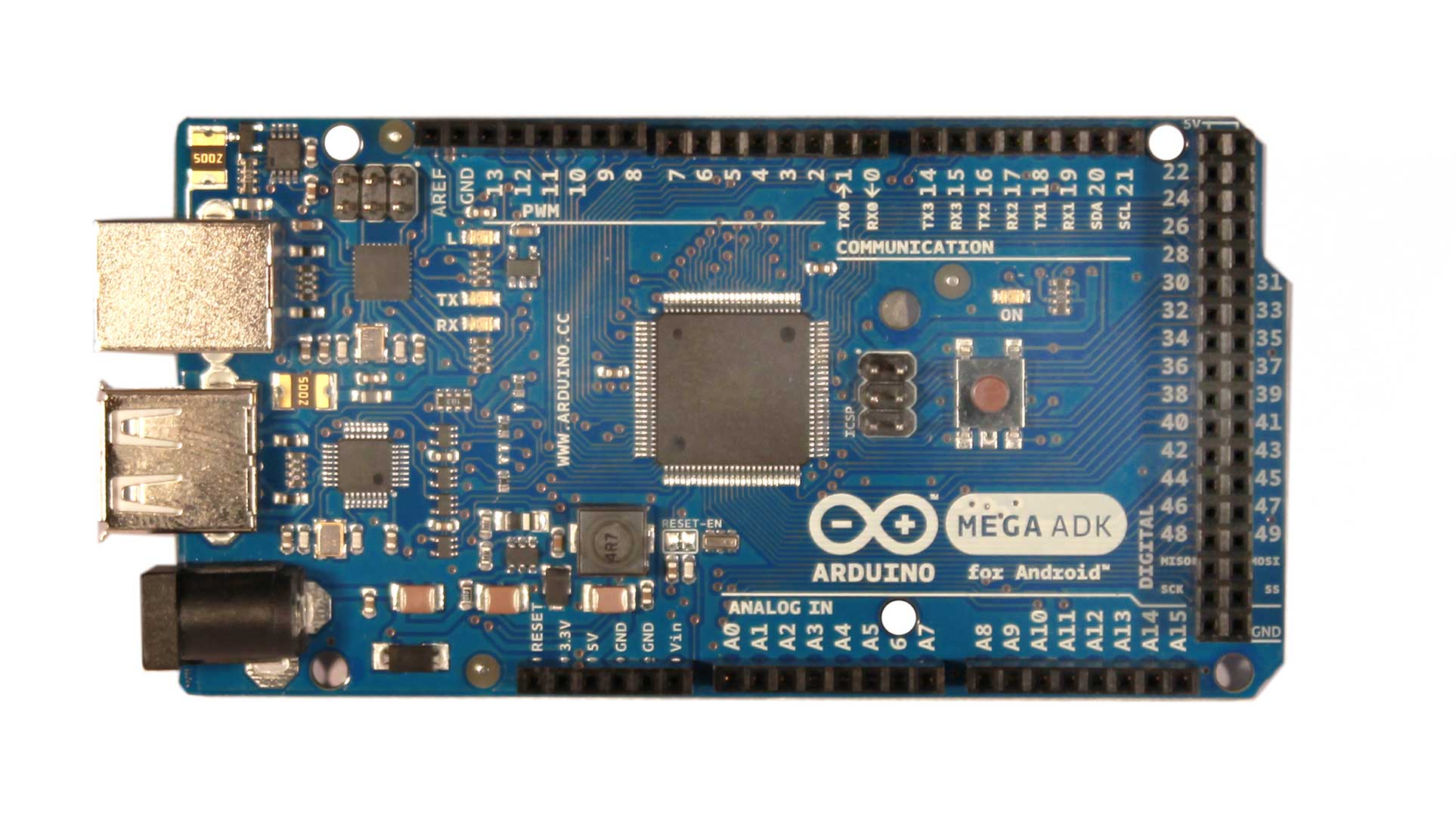
The Arduino ADK is a microcontroller board based on the ATmega2560 (datasheet). It has a USB host interface to connect with Android based phones, based on the MAX3421e IC. It has 54 digital input/output pins (of which 15 can be used as PWM outputs), 16 analog inputs, 4 UARTs (hardware serial ports), a 16 MHz crystal oscillator, a USB connection, a power jack, an ICSP header, and a reset button.
The ADK is based on the Mega 2560.
Similar to the Mega 2560 and Uno, it features an ATmega8U2 programmed as a USB-to-serial converter.
Revision 2of the MegaADK board has a resistor pulling the 8U2 HWB line to ground, making it easier to put into DFU mode.
Revision 3of the board has the following new features:

  • 1.0 pinout: added SDA and SCL pins that are near to the AREF pin and two other new pins placed near to the RESET pin, the IOREF that allow the shields to adapt to the voltage provided from the board. In future, shields will be compatible both with the board that use the AVR, which operate with 5V and with the Arduino Due that operate with 3.3V. The second one is a not connected pin, that is reserved for future purposes.
  • Stronger RESET circuit.
For information on using the board with the Android OS, see Google's ADK documentation.


Arduino ADK Front
 

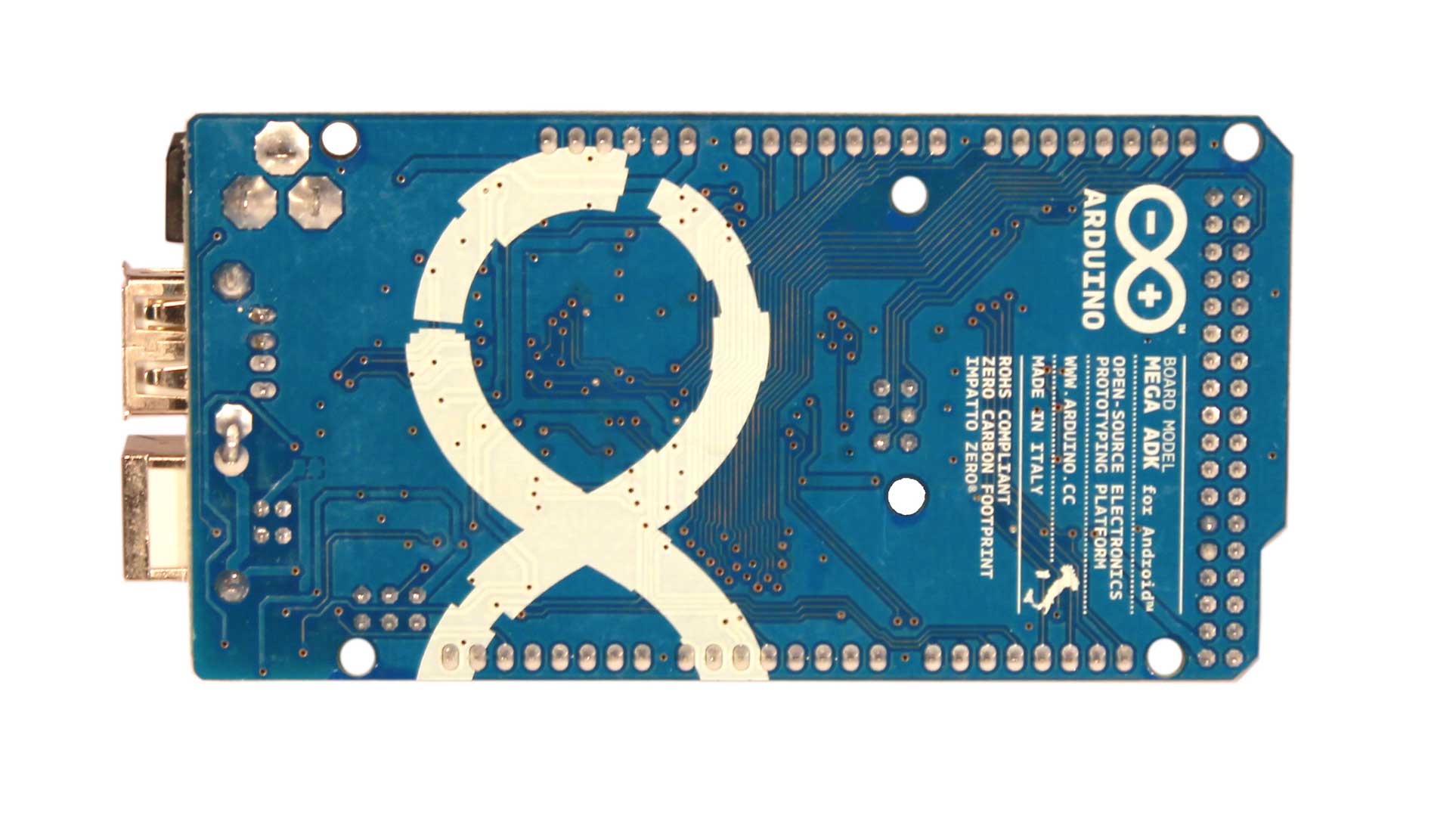
Arduino ADK Back

Schematic, Reference Design & Pin Mapping

EAGLE files: Arduino_ADK-Mega_2560-Rev3-reference-design.zip
Schematic: Arduino ADK_Mega_2560-schematic.pdf
Pin Mapping: PinMap2560 page

Summary

MicrocontrollerATmega2560
Operating Voltage5V
Input Voltage (recommended)7-12V
Input Voltage (limits)6-20V
Digital I/O Pins54 (of which 15 provide PWM output)
Analog Input Pins16
DC Current per I/O Pin40 mA
DC Current for 3.3V Pin50 mA
Flash Memory256 KB of which 8 KB used by bootloader
SRAM8 KB
EEPROM4 KB
Clock Speed16 MHz

Power

The Arduino ADK can be powered via the USB connection or with an external power supply. The power source is selected automatically.
External (non-USB) power can come either from an AC-to-DC adapter (wall-wart) or battery. The adapter can be connected by plugging a 2.1mm center-positive plug into the board's power jack. Leads from a battery can be inserted in the Gnd and Vin pin headers of the POWER connector.
NB: Because the ADK is a USB Host, the phone will attempt to draw power from it when it needs to charge. When the ADK is powered over USB, 500mA total is available for the phone and board.The external power regulator can supply up to 1500mA. 750mA is available for the phone and ADK board. An additional 750mA is allocated for any actuators and sensors attached to the board. A power supply must be capable of providing 1.5A to use this much current.
The board can operate on an external supply of 5.5 to 16 volts. If supplied with less than 7V, however, the 5V pin may supply less than five volts and the board may be unstable. If using more than 12V, the voltage regulator may overheat and damage the board. The recommended range is 7 to 12 volts.
The power pins are as follows:
  • VIN. The input voltage to the Arduino board when it's using an external power source (as opposed to 5 volts from the USB connection or other regulated power source). You can supply voltage through this pin, or, if supplying voltage via the power jack, access it through this pin.
  • 5V. This pin outputs a regulated 5V from the regulator on the board. The board can be supplied with power either from the DC power jack (7 - 12V), the USB connector (5V), or the VIN pin of the board (7-12V). Supplying voltage via the 5V or 3.3V pins bypasses the regulator, and can damage your board. We don't advise it.
  • 3V3. A 3.3 volt supply generated by the on-board regulator. Maximum current draw is 50 mA.
  • GND. Ground pins.
  • IOREF. This pin on the Arduino board provides the voltage reference with which the microcontroller operates. A properly configured shield can read the IOREF pin voltage and select the appropriate power source or enable voltage translators on the outputs for working with the 5V or 3.3V.

Memory

The ADK has 256 KB of flash memory for storing code (of which 8 KB is used for the bootloader), 8 KB of SRAM and 4 KB of EEPROM (which can be read and written with the EEPROM library).

Input and Output

Each of the 50 digital pins on the ADK can be used as an input or output, using pinMode(), digitalWrite(), and digitalRead() functions. They operate at 5 volts. Each pin can provide or receive a maximum of 40 mA and has an internal pull-up resistor (disconnected by default) of 20-50 kOhms. In addition, some pins have specialized functions:
  • Serial: 0 (RX) and 1 (TX); Serial 1: 19 (RX) and 18 (TX); Serial 2: 17 (RX) and 16 (TX); Serial 3: 15 (RX) and 14 (TX). Used to receive (RX) and transmit (TX) TTL serial data. Pins 0 and 1 are also connected to the corresponding pins of the ATmega8U2 USB-to-TTL Serial chip.
  • External Interrupts: 2 (interrupt 0), 3 (interrupt 1), 18 (interrupt 5), 19 (interrupt 4), 20 (interrupt 3), and 21 (interrupt 2). These pins can be configured to trigger an interrupt on a low value, a rising or falling edge, or a change in value. See the attachInterrupt() function for details.
  • PWM: 2 to 13 and 44 to 46. Provide 8-bit PWM output with the analogWrite() function.
  • SPI: 50 (MISO), 51 (MOSI), 52 (SCK), 53 (SS). These pins support SPI communication using the SPI library. The SPI pins are also broken out on the ICSP header, which is physically compatible with the Uno, Duemilanove and Diecimila.
  • USB Host: MAX3421E. The MAX3421E comunicate with Arduino with the SPI bus. So it uses the following pins:
    • Digital: 7 (RST), 50 (MISO), 51 (MOSI), 52 (SCK).
      NB:Please do not use Digital pin 7 as input or output because is used in the comunication with MAX3421E
    • Non broken out on headers: PJ3 (GP_MAX), PJ6 (INT_MAX), PH7 (SS).
  • LED: 13. There is a built-in LED connected to digital pin 13. When the pin is HIGH value, the LED is on, when the pin is LOW, it's off.
  • TWI: 20 (SDA) and 21 (SCL). Support TWI communication using the Wire library. Note that these pins are not in the same location as the TWI pins on the Duemilanove or Diecimila.
The ADK has 16 analog inputs, each of which provide 10 bits of resolution (i.e. 1024 different values). By default they measure from ground to 5 volts, though is it possible to change the upper end of their range using the AREF pin and analogReference() function.
There are a couple of other pins on the board:
  • AREF. Reference voltage for the analog inputs. Used with analogReference().
  • Reset. Bring this line LOW to reset the microcontroller. Typically used to add a reset button to shields which block the one on the board.

Communication

The Arduino ADK has a number of facilities for communicating with a computer, another Arduino, or other microcontrollers. The ATmega2560 provides four hardware UARTs for TTL (5V) serial communication. An ATmega8U2 on the board channels one of these over USB and provides a virtual com port to software on the computer (Windows machines will need a .inf file, but OSX and Linux machines will recognize the board as a COM port automatically. The Arduino software includes a serial monitor which allows simple textual data to be sent to and from the board. The RX and TX LEDs on the board will flash when data is being transmitted via the ATmega8U2/16U2 chip and USB connection to the computer (but not for serial communication on pins 0 and 1).
A SoftwareSerial library allows for serial communication on any of the ADK's digital pins.
The ATmega2560 also supports TWI and SPI communication. The Arduino software includes a Wire library to simplify use of the TWI bus; see the Wire library for details. For SPI communication, use the SPI library.
The USB host interface given by MAX3421E IC allows the ADK Arduino to connect and interact to any type of device that have a USB port. For example, allows you to interact with many types of phones, controlling Canon cameras, interfacing with keyboard, mouse and games controllers as Wiimote and PS3.

Programming

The Arduino ADK can be programmed with the Arduino software (download). For details, see the reference and tutorials.
The ATmega2560 on the Arduino ADK comes preburned with a bootloader (the same on Mega 2560) that allows you to upload new code to it without the use of an external hardware programmer. It communicates using the original STK500v2 protocol (reference, C header files).
You can also bypass the bootloader and program the microcontroller through the ICSP (In-Circuit Serial Programming) header; see these instructions for details.
The ATmega8U2 firmware source code is available in the Arduino repository. The ATmega8U2 is loaded with a DFU bootloader, which can be activated by:
  • On Rev1 boards: connecting the solder jumper on the back of the board (near the map of Italy) and then resetting the 8U2.
  • On Rev2 or later boards: there is a resistor that pulling the 8U2/16U2 HWB line to ground, making it easier to put into DFU mode. You can then use Atmel's FLIP software (Windows) or the DFU programmer (Mac OS X and Linux) to load a new firmware. Or you can use the ISP header with an external programmer (overwriting the DFU bootloader). See this user-contributed tutorial for more information.

Automatic (Software) Reset

Rather then requiring a physical press of the reset button before an upload, the Arduino ADK is designed in a way that allows it to be reset by software running on a connected computer. One of the hardware flow control lines (DTR) of the ATmega8U2 is connected to the reset line of the ATmega2560 via a 100 nanofarad capacitor. When this line is asserted (taken low), the reset line drops long enough to reset the chip. The Arduino software uses this capability to allow you to upload code by simply pressing the upload button in the Arduino environment. This means that the bootloader can have a shorter timeout, as the lowering of DTR can be well-coordinated with the start of the upload.
This setup has other implications. When the ADK is connected to either a computer running Mac OS X or Linux, it resets each time a connection is made to it from software (via USB). For the following half-second or so, the bootloader is running on the ADK. While it is programmed to ignore malformed data (i.e. anything besides an upload of new code), it will intercept the first few bytes of data sent to the board after a connection is opened. If a sketch running on the board receives one-time configuration or other data when it first starts, make sure that the software with which it communicates waits a second after opening the connection and before sending this data.
The ADK contains a trace that can be cut to disable the auto-reset. The pads on either side of the trace can be soldered together to re-enable it. It's labeled "RESET-EN". You may also be able to disable the auto-reset by connecting a 110 ohm resistor from 5V to the reset line; see this forum thread for details.

USB Overcurrent Protection

The Arduino ADK has a resettable polyfuse that protects your computer's USB ports from shorts and overcurrent. Although most computers provide their own internal protection, the fuse provides an extra layer of protection. If more than 500 mA is applied to the USB port, the fuse will automatically break the connection until the short or overload is removed.

Physical Characteristics and Shield Compatibility

The maximum length and width of the ADK PCB are 4 and 2.1 inches respectively, with the USB connector and power jack extending beyond the former dimension. Three screw holes allow the board to be attached to a surface or case. Note that the distance between digital pins 7 and 8 is 160 mil (0.16"), not an even multiple of the 100 mil spacing of the other pins.
The ADK is designed to be compatible with most shields designed for the Uno, Diecimila or Duemilanove. Digital pins 0 to 13 (and the adjacent AREF and GND pins), analog inputs 0 to 5, the power header, and ICSP header are all in equivalent locations. Further the main UART (serial port) is located on the same pins (0 and 1), as are external interrupts 0 and 1 (pins 2 and 3 respectively). SPI is available through the ICSP header on both the ADK and Duemilanove / Diecimila. Please note that I2C is not located on the same pins on the ADK (20 and 21) as the Duemilanove / Diecimila (analog inputs 4 and 5).

Drivers & Setup

With this board you need to change the boards.txt file in your Arduino directory (find it in: "Arduino-00xx > hardware > arduino"):
Arduino 0022 or olderboards.txt
Arduino 1.0 Betaboards1.0.txt
[To be downladed, this files are compressed into a zip archive, so you need to unzip them into the directory described above.]
Windows users in order to get working the board need a .inf file for this specific product: Arduino_ADK.zip
For installation follow the same procedure on how install an UNO board on your computer.
Rp.850.000,00


Overview

The Arduino ADK is a microcontroller board based on the ATmega2560 (datasheet). It has a USB host interface to connect with Android based phones, based on the MAX3421e IC. It has 54 digital input/output pins (of which 15 can be used as PWM outputs), 16 analog inputs, 4 UARTs (hardware serial ports), a 16 MHz crystal oscillator, a USB connection, a power jack, an ICSP header, and a reset button.
The ADK is based on the Mega 2560.
Similar to the Mega 2560 and Uno, it features an ATmega8U2 programmed as a USB-to-serial converter.
Revision 2of the MegaADK board has a resistor pulling the 8U2 HWB line to ground, making it easier to put into DFU mode.
Revision 3of the board has the following new features:

  • 1.0 pinout: added SDA and SCL pins that are near to the AREF pin and two other new pins placed near to the RESET pin, the IOREF that allow the shields to adapt to the voltage provided from the board. In future, shields will be compatible both with the board that use the AVR, which operate with 5V and with the Arduino Due that operate with 3.3V. The second one is a not connected pin, that is reserved for future purposes.
  • Stronger RESET circuit.
For information on using the board with the Android OS, see Google's ADK documentation.


Arduino ADK Front
 

Arduino ADK Back

Schematic, Reference Design & Pin Mapping

EAGLE files: Arduino_ADK-Mega_2560-Rev3-reference-design.zip
Schematic: Arduino ADK_Mega_2560-schematic.pdf
Pin Mapping: PinMap2560 page

Summary

MicrocontrollerATmega2560
Operating Voltage5V
Input Voltage (recommended)7-12V
Input Voltage (limits)6-20V
Digital I/O Pins54 (of which 15 provide PWM output)
Analog Input Pins16
DC Current per I/O Pin40 mA
DC Current for 3.3V Pin50 mA
Flash Memory256 KB of which 8 KB used by bootloader
SRAM8 KB
EEPROM4 KB
Clock Speed16 MHz

Power

The Arduino ADK can be powered via the USB connection or with an external power supply. The power source is selected automatically.
External (non-USB) power can come either from an AC-to-DC adapter (wall-wart) or battery. The adapter can be connected by plugging a 2.1mm center-positive plug into the board's power jack. Leads from a battery can be inserted in the Gnd and Vin pin headers of the POWER connector.
NB: Because the ADK is a USB Host, the phone will attempt to draw power from it when it needs to charge. When the ADK is powered over USB, 500mA total is available for the phone and board.The external power regulator can supply up to 1500mA. 750mA is available for the phone and ADK board. An additional 750mA is allocated for any actuators and sensors attached to the board. A power supply must be capable of providing 1.5A to use this much current.
The board can operate on an external supply of 5.5 to 16 volts. If supplied with less than 7V, however, the 5V pin may supply less than five volts and the board may be unstable. If using more than 12V, the voltage regulator may overheat and damage the board. The recommended range is 7 to 12 volts.
The power pins are as follows:
  • VIN. The input voltage to the Arduino board when it's using an external power source (as opposed to 5 volts from the USB connection or other regulated power source). You can supply voltage through this pin, or, if supplying voltage via the power jack, access it through this pin.
  • 5V. This pin outputs a regulated 5V from the regulator on the board. The board can be supplied with power either from the DC power jack (7 - 12V), the USB connector (5V), or the VIN pin of the board (7-12V). Supplying voltage via the 5V or 3.3V pins bypasses the regulator, and can damage your board. We don't advise it.
  • 3V3. A 3.3 volt supply generated by the on-board regulator. Maximum current draw is 50 mA.
  • GND. Ground pins.
  • IOREF. This pin on the Arduino board provides the voltage reference with which the microcontroller operates. A properly configured shield can read the IOREF pin voltage and select the appropriate power source or enable voltage translators on the outputs for working with the 5V or 3.3V.

Memory

The ADK has 256 KB of flash memory for storing code (of which 8 KB is used for the bootloader), 8 KB of SRAM and 4 KB of EEPROM (which can be read and written with the EEPROM library).

Input and Output

Each of the 50 digital pins on the ADK can be used as an input or output, using pinMode(), digitalWrite(), and digitalRead() functions. They operate at 5 volts. Each pin can provide or receive a maximum of 40 mA and has an internal pull-up resistor (disconnected by default) of 20-50 kOhms. In addition, some pins have specialized functions:
  • Serial: 0 (RX) and 1 (TX); Serial 1: 19 (RX) and 18 (TX); Serial 2: 17 (RX) and 16 (TX); Serial 3: 15 (RX) and 14 (TX). Used to receive (RX) and transmit (TX) TTL serial data. Pins 0 and 1 are also connected to the corresponding pins of the ATmega8U2 USB-to-TTL Serial chip.
  • External Interrupts: 2 (interrupt 0), 3 (interrupt 1), 18 (interrupt 5), 19 (interrupt 4), 20 (interrupt 3), and 21 (interrupt 2). These pins can be configured to trigger an interrupt on a low value, a rising or falling edge, or a change in value. See the attachInterrupt() function for details.
  • PWM: 2 to 13 and 44 to 46. Provide 8-bit PWM output with the analogWrite() function.
  • SPI: 50 (MISO), 51 (MOSI), 52 (SCK), 53 (SS). These pins support SPI communication using the SPI library. The SPI pins are also broken out on the ICSP header, which is physically compatible with the Uno, Duemilanove and Diecimila.
  • USB Host: MAX3421E. The MAX3421E comunicate with Arduino with the SPI bus. So it uses the following pins:
    • Digital: 7 (RST), 50 (MISO), 51 (MOSI), 52 (SCK).
      NB:Please do not use Digital pin 7 as input or output because is used in the comunication with MAX3421E
    • Non broken out on headers: PJ3 (GP_MAX), PJ6 (INT_MAX), PH7 (SS).
  • LED: 13. There is a built-in LED connected to digital pin 13. When the pin is HIGH value, the LED is on, when the pin is LOW, it's off.
  • TWI: 20 (SDA) and 21 (SCL). Support TWI communication using the Wire library. Note that these pins are not in the same location as the TWI pins on the Duemilanove or Diecimila.
The ADK has 16 analog inputs, each of which provide 10 bits of resolution (i.e. 1024 different values). By default they measure from ground to 5 volts, though is it possible to change the upper end of their range using the AREF pin and analogReference() function.
There are a couple of other pins on the board:
  • AREF. Reference voltage for the analog inputs. Used with analogReference().
  • Reset. Bring this line LOW to reset the microcontroller. Typically used to add a reset button to shields which block the one on the board.

Communication

The Arduino ADK has a number of facilities for communicating with a computer, another Arduino, or other microcontrollers. The ATmega2560 provides four hardware UARTs for TTL (5V) serial communication. An ATmega8U2 on the board channels one of these over USB and provides a virtual com port to software on the computer (Windows machines will need a .inf file, but OSX and Linux machines will recognize the board as a COM port automatically. The Arduino software includes a serial monitor which allows simple textual data to be sent to and from the board. The RX and TX LEDs on the board will flash when data is being transmitted via the ATmega8U2/16U2 chip and USB connection to the computer (but not for serial communication on pins 0 and 1).
A SoftwareSerial library allows for serial communication on any of the ADK's digital pins.
The ATmega2560 also supports TWI and SPI communication. The Arduino software includes a Wire library to simplify use of the TWI bus; see the Wire library for details. For SPI communication, use the SPI library.
The USB host interface given by MAX3421E IC allows the ADK Arduino to connect and interact to any type of device that have a USB port. For example, allows you to interact with many types of phones, controlling Canon cameras, interfacing with keyboard, mouse and games controllers as Wiimote and PS3.

Programming

The Arduino ADK can be programmed with the Arduino software (download). For details, see the reference and tutorials.
The ATmega2560 on the Arduino ADK comes preburned with a bootloader (the same on Mega 2560) that allows you to upload new code to it without the use of an external hardware programmer. It communicates using the original STK500v2 protocol (reference, C header files).
You can also bypass the bootloader and program the microcontroller through the ICSP (In-Circuit Serial Programming) header; see these instructions for details.
The ATmega8U2 firmware source code is available in the Arduino repository. The ATmega8U2 is loaded with a DFU bootloader, which can be activated by:
  • On Rev1 boards: connecting the solder jumper on the back of the board (near the map of Italy) and then resetting the 8U2.
  • On Rev2 or later boards: there is a resistor that pulling the 8U2/16U2 HWB line to ground, making it easier to put into DFU mode. You can then use Atmel's FLIP software (Windows) or the DFU programmer (Mac OS X and Linux) to load a new firmware. Or you can use the ISP header with an external programmer (overwriting the DFU bootloader). See this user-contributed tutorial for more information.

Automatic (Software) Reset

Rather then requiring a physical press of the reset button before an upload, the Arduino ADK is designed in a way that allows it to be reset by software running on a connected computer. One of the hardware flow control lines (DTR) of the ATmega8U2 is connected to the reset line of the ATmega2560 via a 100 nanofarad capacitor. When this line is asserted (taken low), the reset line drops long enough to reset the chip. The Arduino software uses this capability to allow you to upload code by simply pressing the upload button in the Arduino environment. This means that the bootloader can have a shorter timeout, as the lowering of DTR can be well-coordinated with the start of the upload.
This setup has other implications. When the ADK is connected to either a computer running Mac OS X or Linux, it resets each time a connection is made to it from software (via USB). For the following half-second or so, the bootloader is running on the ADK. While it is programmed to ignore malformed data (i.e. anything besides an upload of new code), it will intercept the first few bytes of data sent to the board after a connection is opened. If a sketch running on the board receives one-time configuration or other data when it first starts, make sure that the software with which it communicates waits a second after opening the connection and before sending this data.
The ADK contains a trace that can be cut to disable the auto-reset. The pads on either side of the trace can be soldered together to re-enable it. It's labeled "RESET-EN". You may also be able to disable the auto-reset by connecting a 110 ohm resistor from 5V to the reset line; see this forum thread for details.

USB Overcurrent Protection

The Arduino ADK has a resettable polyfuse that protects your computer's USB ports from shorts and overcurrent. Although most computers provide their own internal protection, the fuse provides an extra layer of protection. If more than 500 mA is applied to the USB port, the fuse will automatically break the connection until the short or overload is removed.

Physical Characteristics and Shield Compatibility

The maximum length and width of the ADK PCB are 4 and 2.1 inches respectively, with the USB connector and power jack extending beyond the former dimension. Three screw holes allow the board to be attached to a surface or case. Note that the distance between digital pins 7 and 8 is 160 mil (0.16"), not an even multiple of the 100 mil spacing of the other pins.
The ADK is designed to be compatible with most shields designed for the Uno, Diecimila or Duemilanove. Digital pins 0 to 13 (and the adjacent AREF and GND pins), analog inputs 0 to 5, the power header, and ICSP header are all in equivalent locations. Further the main UART (serial port) is located on the same pins (0 and 1), as are external interrupts 0 and 1 (pins 2 and 3 respectively). SPI is available through the ICSP header on both the ADK and Duemilanove / Diecimila. Please note that I2C is not located on the same pins on the ADK (20 and 21) as the Duemilanove / Diecimila (analog inputs 4 and 5).

Drivers & Setup

With this board you need to change the boards.txt file in your Arduino directory (find it in: "Arduino-00xx > hardware > arduino"):
Arduino 0022 or olderboards.txt
Arduino 1.0 Betaboards1.0.txt
[To be downladed, this files are compressed into a zip archive, so you need to unzip them into the directory described above.]
Windows users in order to get working the board need a .inf file for this specific product: Arduino_ADK.zip
For installation follow the same procedure on how install an UNO board on your computer.
Detail

50A Dual-Channel motor drive module-Arduino Compatible

Rp.440.000,00

Product Description:


Introduction

This motor driver works with single channel max 50A load capacity. This module performs far better than MC33886 or L298 motor driver, especially in terms of motor speed control and power efficiency.
This drive has a brake function, which can quickly stop the motor. And the operation is very easy.The drive module contains a full-bridge driver chip and MOSFET with low internal resistance. The full-bridge driver IC minimizes the switching loss of MOSFET and improves power efficiency.
MOSFET is current impact-resistant type, with internal resistance of 0.003 Ohm. MOSFET channel can be opened quickly to improve the motor's speed curvature, and also brake the motor quickly. This function can make the car start or stop quickly.
This driver module  can work under the PWM duty cycle of 0% -98%.

Parameter

  • Peak current (Load): 50A
  • Recommend max working current(Load): 20A
  • Power VCC (Load): 0V~30V
  • Recommend power vcc(load) : 12V ~ 26V
  • Control VCC: 4V~12V
  • Control TTL Voltage; 2.5V ~ 12V
Note:
  1. Control TTL voltage means the High voltage of the control pins (EN, LPWM, RPWM, DIS).
  2. The stable max working current is 20A while load vcc is between 12V~30V. The current is restricted by heat dissipation. Current, we don't add any heat radiator on the board.So if the current is over 20A, the heat may melt the sldering tin and cause problems. If you want it working stable at higher current, you should add radiator.
  3. Power VCC is recommended to be higher than 12V if your load is large-current devices. While over 12V, the MOSFET is working fully and its power consumption is small. So the heat will be less. If your load current is not large and just several  Amperes, the power VCC can be as low as 3V.

Interface

We are trying to let this driver be compatible with Arduino and non-Arduino users. We leave holes on the PCB and so mount long-pin felmale hearders to plug in Arduino. If you are non-Arduino user, leave the holes alone.

Above in the red box are for Arduino. We will ship the long-pin female headers with this module.


To improve performance while with large current load. you could add soldering tin on the routs shown below.

Dimension

  • PCB Size: 52.3mm x 63.9mm
  • Mount Hole: 44.4mm x 57.0mm, 3mm Diameter
  • High: 12.4mm(without long-pin headers) or 26.4mm (with long-pin headers)

Control

Basically the control is very easy.
  • Rotate forward: EN = HIGH, RPWM = PWM, LPWM = HIGH, DIS = vacant
  • Rotate reverse: EN = HIGH, RPWM = HIGH, LPWM = PWM, DIS = vacant
  • Stop and brake: EN = HIGH, RPWM = HIGH, LPWM = HIGH, DIS = vacant
  • Stop but not brake: EN = 0, RPWM = HIGH, LPWM = HIGH, DIS = vacant
  • Prohibit : EN = X, RPWM = X, LPWM = X, DIS = HIGH
For Arduin users:     
Channel
Driver Module
Arduino Pin (V1)
Arduino Pin (V2)
A
EN
2
2
RPWM
3
3
DIS
4
4
LPWM
5
11
B
EN
8
8
RPWM
9
9
DIS
7
7
LPWM
6
10

Please note:
  1. Smaller PWM duty will get higher speed.
  2. PWM frequency should be 1Khz ~ 60Khz. Smaller frequency could get it work but not in perfect performace.It may increase the module's resonse time, but very slight in nanosecond level.We can't sense it. Default frequency of Arduino PWM is 0.5Khz. In our test, the default frequency could get it work very well. But remember, for better performance, the recommended frequency is 1Khz ~ 60Khz. In our library, we set the pwm frequency over 1Khz.

Note

Current we updated this module to V2. If you version is the 2nd version, be careful while you solder the long-header pins.
The software is also modified for version 2. You could find corresponding comments on the change in the library.

Document

Library for Arduino

Product list

  • 50A motor drive module x1
  • Female pins for Arduino x4
Note: by default, the female pins are not soldered on the module.  
Rp.440.000,00

Product Description:


Introduction

This motor driver works with single channel max 50A load capacity. This module performs far better than MC33886 or L298 motor driver, especially in terms of motor speed control and power efficiency.
This drive has a brake function, which can quickly stop the motor. And the operation is very easy.The drive module contains a full-bridge driver chip and MOSFET with low internal resistance. The full-bridge driver IC minimizes the switching loss of MOSFET and improves power efficiency.
MOSFET is current impact-resistant type, with internal resistance of 0.003 Ohm. MOSFET channel can be opened quickly to improve the motor's speed curvature, and also brake the motor quickly. This function can make the car start or stop quickly.
This driver module  can work under the PWM duty cycle of 0% -98%.

Parameter

  • Peak current (Load): 50A
  • Recommend max working current(Load): 20A
  • Power VCC (Load): 0V~30V
  • Recommend power vcc(load) : 12V ~ 26V
  • Control VCC: 4V~12V
  • Control TTL Voltage; 2.5V ~ 12V
Note:
  1. Control TTL voltage means the High voltage of the control pins (EN, LPWM, RPWM, DIS).
  2. The stable max working current is 20A while load vcc is between 12V~30V. The current is restricted by heat dissipation. Current, we don't add any heat radiator on the board.So if the current is over 20A, the heat may melt the sldering tin and cause problems. If you want it working stable at higher current, you should add radiator.
  3. Power VCC is recommended to be higher than 12V if your load is large-current devices. While over 12V, the MOSFET is working fully and its power consumption is small. So the heat will be less. If your load current is not large and just several  Amperes, the power VCC can be as low as 3V.

Interface

We are trying to let this driver be compatible with Arduino and non-Arduino users. We leave holes on the PCB and so mount long-pin felmale hearders to plug in Arduino. If you are non-Arduino user, leave the holes alone.

Above in the red box are for Arduino. We will ship the long-pin female headers with this module.


To improve performance while with large current load. you could add soldering tin on the routs shown below.

Dimension

  • PCB Size: 52.3mm x 63.9mm
  • Mount Hole: 44.4mm x 57.0mm, 3mm Diameter
  • High: 12.4mm(without long-pin headers) or 26.4mm (with long-pin headers)

Control

Basically the control is very easy.
  • Rotate forward: EN = HIGH, RPWM = PWM, LPWM = HIGH, DIS = vacant
  • Rotate reverse: EN = HIGH, RPWM = HIGH, LPWM = PWM, DIS = vacant
  • Stop and brake: EN = HIGH, RPWM = HIGH, LPWM = HIGH, DIS = vacant
  • Stop but not brake: EN = 0, RPWM = HIGH, LPWM = HIGH, DIS = vacant
  • Prohibit : EN = X, RPWM = X, LPWM = X, DIS = HIGH
For Arduin users:     
Channel
Driver Module
Arduino Pin (V1)
Arduino Pin (V2)
A
EN
2
2
RPWM
3
3
DIS
4
4
LPWM
5
11
B
EN
8
8
RPWM
9
9
DIS
7
7
LPWM
6
10

Please note:
  1. Smaller PWM duty will get higher speed.
  2. PWM frequency should be 1Khz ~ 60Khz. Smaller frequency could get it work but not in perfect performace.It may increase the module's resonse time, but very slight in nanosecond level.We can't sense it. Default frequency of Arduino PWM is 0.5Khz. In our test, the default frequency could get it work very well. But remember, for better performance, the recommended frequency is 1Khz ~ 60Khz. In our library, we set the pwm frequency over 1Khz.

Note

Current we updated this module to V2. If you version is the 2nd version, be careful while you solder the long-header pins.
The software is also modified for version 2. You could find corresponding comments on the change in the library.

Document

Library for Arduino

Product list

  • 50A motor drive module x1
  • Female pins for Arduino x4
Note: by default, the female pins are not soldered on the module.  
Detail

APC220 Radio Communication Module

Rp.660.000,00
Introduction

The APC220 radio module provides a simple and economic solution to wireless data communications. The employment of an embedded high speed microprocessor and high performance IC creates a transparent UART/TTL interface, and elminates any need for packetizing and data encoding.

Features

  • Transmit distance up to 1000m (line of sight) @9600 bps
  • 256 bytes data buffer
  • High sensitivity (-112dbbm @9600 bps)
  • GFSK modulation
  • UART/TTL interface
  • Embedded watch dog
  • Size: 37x17x6.5 mm 


Shipping list
  • APC220 module(2 units)
  • Antenna for radio communication(2 units)
  • USB to TTL Converter (CP210) (1 unit)

Documents
Rp.660.000,00
Introduction

The APC220 radio module provides a simple and economic solution to wireless data communications. The employment of an embedded high speed microprocessor and high performance IC creates a transparent UART/TTL interface, and elminates any need for packetizing and data encoding.

Features

  • Transmit distance up to 1000m (line of sight) @9600 bps
  • 256 bytes data buffer
  • High sensitivity (-112dbbm @9600 bps)
  • GFSK modulation
  • UART/TTL interface
  • Embedded watch dog
  • Size: 37x17x6.5 mm 


Shipping list
  • APC220 module(2 units)
  • Antenna for radio communication(2 units)
  • USB to TTL Converter (CP210) (1 unit)

Documents
Detail

Bluetooth Bee

Rp.420.000,00
Bluetooth Bee

Introduction 
This DFRobot Bluetooth Bee Bluetooth wireless module adapts XBEE design. It has compact size, the pinout is compatible with XBEE which is suitable for all kinds of microcontroller systems who have 3.3V power out, the module can use the AT commands to set baud rate. 
The Bluetooth Bee modules comes with an on-board antenna, the antenna provides better signal quality. It acts like a transparent serial port, which works with a variety of Bluetooth adapter and Bluetooth phone. 
The module has been tested with all the Bluetooth adapter on the market matching to use (with the Bluetooth, including laptops and mobile phones). 
Bluetooth Bee Bluetooth wireless module can modify the baud rate to use XBEE adapter. You can use XBEE Arduino controller receives the base plug, enabling Bluetooth wireless control. 
Specifications 
  • 1. Bluetooth chip: CSR BC417143 
  • 2. Bluetooth protocol: Bluetooth Specification v2.0 + EDR 
  • 3.USB Protocol: USB v1.1/2.0 
  • 4. Operating frequency: 2.4 ~ 2.48GHz unlicensed ISM band 
  • 5. Modulation: GFSK (Gaussian Frequency Shift Keying) 
  • 6. Transmit Power: ≤ 4dBm, Class 2 
  • 7. Transmission distance: 20 ~ 30m in free space 
  • 8. Sensitivity: ≤-84dBm at 0.1% BER 
  • 9. Transfer rate: Asynchronous: 2.1Mbps (Max) / 160 kbps; Synchronous: 1Mbps/1Mbps 
  • 10. Safety features: Authentication and encryption 
  • 11. Support profiles: Bluetooth serial port 
  • 12. Serial port settings: 1200 ~ 1382400 / N / 8 / 1 
  • 13. Baud rate default: 9600 
  • 14. Pair: 1234 
  • 15. Input Voltage: +3.3 DC/50mA 
  • 16. Operating temperature: -20 ℃ ~ +55 ℃ 
  • 17. Module Size: 32 × 24 × 9mm 

Shipping List
  • Bluetooth Bee(1 unit)

Documents
Rp.420.000,00
Bluetooth Bee

Introduction 
This DFRobot Bluetooth Bee Bluetooth wireless module adapts XBEE design. It has compact size, the pinout is compatible with XBEE which is suitable for all kinds of microcontroller systems who have 3.3V power out, the module can use the AT commands to set baud rate. 
The Bluetooth Bee modules comes with an on-board antenna, the antenna provides better signal quality. It acts like a transparent serial port, which works with a variety of Bluetooth adapter and Bluetooth phone. 
The module has been tested with all the Bluetooth adapter on the market matching to use (with the Bluetooth, including laptops and mobile phones). 
Bluetooth Bee Bluetooth wireless module can modify the baud rate to use XBEE adapter. You can use XBEE Arduino controller receives the base plug, enabling Bluetooth wireless control. 
Specifications 
  • 1. Bluetooth chip: CSR BC417143 
  • 2. Bluetooth protocol: Bluetooth Specification v2.0 + EDR 
  • 3.USB Protocol: USB v1.1/2.0 
  • 4. Operating frequency: 2.4 ~ 2.48GHz unlicensed ISM band 
  • 5. Modulation: GFSK (Gaussian Frequency Shift Keying) 
  • 6. Transmit Power: ≤ 4dBm, Class 2 
  • 7. Transmission distance: 20 ~ 30m in free space 
  • 8. Sensitivity: ≤-84dBm at 0.1% BER 
  • 9. Transfer rate: Asynchronous: 2.1Mbps (Max) / 160 kbps; Synchronous: 1Mbps/1Mbps 
  • 10. Safety features: Authentication and encryption 
  • 11. Support profiles: Bluetooth serial port 
  • 12. Serial port settings: 1200 ~ 1382400 / N / 8 / 1 
  • 13. Baud rate default: 9600 
  • 14. Pair: 1234 
  • 15. Input Voltage: +3.3 DC/50mA 
  • 16. Operating temperature: -20 ℃ ~ +55 ℃ 
  • 17. Module Size: 32 × 24 × 9mm 

Shipping List
  • Bluetooth Bee(1 unit)

Documents
Detail

Mini 2440 LCD 3.5 SBC (Single-Board Computer)

Rp.1.850.000,00
1G Mini2440 S3C2440 ARM9 Board+3.5'' SDK


The Mini2440 is an efficient ARM9 development board with a comprehensive price, it characterizes simple method and high performance-price ratio. Based on the Samsung S3C2440 microprocessor, it embodies professional stable CPU core power source chip and reset chip to ensure the stability of the system operation. The PCB on the MINI2440 board is designed to be 4-layers board, adopting the ENIG technology and professional equal-length wiring to ensure the completeness of the signals of the key signal wires; and manufactured and released under stringent quality control plans.

Spesifikasi:

  • Dimension: 100 x 100 mm
  • CPU: 400 MHz Samsung S3C2440A ARM920T (max freq. 533 MHz)
  • RAM: 64 MB SDRAM, 32 bit Bus
  • Flash: 1GB NAND Flash and 2 MB NOR Flash with BIOS
  • EEPROM: 1024 Byte (I2C)
  • Ext. Memory: SD-Card socket
  • Serial Ports: 1x DB9 connector (RS232), total: 3x serial port connectors
  • USB: 1x USB-A Host 1.1, 1x USB-B Device 1.1
  • Audio Output: 3.5 mm stereo jack
  • Audio Input: Connector + Condenser microphone
  • Ethernet: RJ-45 10/100M (DM9000)
  • RTC: Real Time Clock with battery
  • Beeper: PWM buzzer
  • Camera: 20 pin Camera interface (2.0 mm)
  • LCD Interface
  • STN Displays
  • TFT Displays
  • 41 pin connector for FriendlyARM Displays (3.5" and 7") and VGA Board
  • Touch Panel: 4 wire resistive
  • User Inputs: 6x push buttons and 1x A/D pot
  • User Outputs: 4x LEDs
  • Expansion: 40 pin System Bus, 34 pin GPIO, 10 pin Buttons (2.0 mm)
  • Debug: 10 pin JTAG (2.0 mm)
  • Power: regulated 5V (DC-Plug: 1.35mm inner x 3.5mm outer diameter)
  • Power Consumption: Mini2440: 0.3 A, Mini2440 + 3.5" LCD: 0.6 A, Mini2440 + 7" LCD: 1 A

OS Support:

  • Windows CE 5 and 6
  • Linux 2.6
  • Android

Kelengkapan:

  • Mini2440 Learning Development Board 1G Nand Flash 
  • Power adapter (+5 V)
  • DB9 directly connected serial Cable
  • Crossover cable
  • USB Cable
  • Summary JTAG small plates +  JTAG download cable
  • 3.5-inch Touch Screen + Touch Pen
  • Development DVD
  • Beautifully Packaged Box

Rp.1.850.000,00
1G Mini2440 S3C2440 ARM9 Board+3.5'' SDK


The Mini2440 is an efficient ARM9 development board with a comprehensive price, it characterizes simple method and high performance-price ratio. Based on the Samsung S3C2440 microprocessor, it embodies professional stable CPU core power source chip and reset chip to ensure the stability of the system operation. The PCB on the MINI2440 board is designed to be 4-layers board, adopting the ENIG technology and professional equal-length wiring to ensure the completeness of the signals of the key signal wires; and manufactured and released under stringent quality control plans.

Spesifikasi:

  • Dimension: 100 x 100 mm
  • CPU: 400 MHz Samsung S3C2440A ARM920T (max freq. 533 MHz)
  • RAM: 64 MB SDRAM, 32 bit Bus
  • Flash: 1GB NAND Flash and 2 MB NOR Flash with BIOS
  • EEPROM: 1024 Byte (I2C)
  • Ext. Memory: SD-Card socket
  • Serial Ports: 1x DB9 connector (RS232), total: 3x serial port connectors
  • USB: 1x USB-A Host 1.1, 1x USB-B Device 1.1
  • Audio Output: 3.5 mm stereo jack
  • Audio Input: Connector + Condenser microphone
  • Ethernet: RJ-45 10/100M (DM9000)
  • RTC: Real Time Clock with battery
  • Beeper: PWM buzzer
  • Camera: 20 pin Camera interface (2.0 mm)
  • LCD Interface
  • STN Displays
  • TFT Displays
  • 41 pin connector for FriendlyARM Displays (3.5" and 7") and VGA Board
  • Touch Panel: 4 wire resistive
  • User Inputs: 6x push buttons and 1x A/D pot
  • User Outputs: 4x LEDs
  • Expansion: 40 pin System Bus, 34 pin GPIO, 10 pin Buttons (2.0 mm)
  • Debug: 10 pin JTAG (2.0 mm)
  • Power: regulated 5V (DC-Plug: 1.35mm inner x 3.5mm outer diameter)
  • Power Consumption: Mini2440: 0.3 A, Mini2440 + 3.5" LCD: 0.6 A, Mini2440 + 7" LCD: 1 A

OS Support:

  • Windows CE 5 and 6
  • Linux 2.6
  • Android

Kelengkapan:

  • Mini2440 Learning Development Board 1G Nand Flash 
  • Power adapter (+5 V)
  • DB9 directly connected serial Cable
  • Crossover cable
  • USB Cable
  • Summary JTAG small plates +  JTAG download cable
  • 3.5-inch Touch Screen + Touch Pen
  • Development DVD
  • Beautifully Packaged Box

Detail

Arduino Pasive Infra Red Module

Rp.45.000,00
Arduino Pasive Infra Red Module

Modul PIR (Passive Infra Red) adalah modul pendeteksi gerakan yang bekerja dengan cara mendeteksi adanya perbedaan/perubahan suhu sekarang dan sebelumnya. Modul yang membutuhkan tegangan input DC 5V ini cukup efektif untuk mendeteksi gerakan hingga jarak 5 meter. Ketika tidak mendeteksi gerakan, keluaran modul adalah LOW. Dan ketika mendeteksi adanya gerakan, maka keluaran akan berubah menjadi HIGH. Adapun lebar pulsa HIGH adalah ±0,5 detik.
Rp.45.000,00
Arduino Pasive Infra Red Module

Modul PIR (Passive Infra Red) adalah modul pendeteksi gerakan yang bekerja dengan cara mendeteksi adanya perbedaan/perubahan suhu sekarang dan sebelumnya. Modul yang membutuhkan tegangan input DC 5V ini cukup efektif untuk mendeteksi gerakan hingga jarak 5 meter. Ketika tidak mendeteksi gerakan, keluaran modul adalah LOW. Dan ketika mendeteksi adanya gerakan, maka keluaran akan berubah menjadi HIGH. Adapun lebar pulsa HIGH adalah ±0,5 detik.
Detail

DF05BB Standard Servo SER0020 (5kg)

Rp.205.000,00
DF05BB Standard Servo SER0020

DF05BB high torque servo, suitable for the production head, arm, biped robot, etc. Specifications Voltage: +4.8-6.0 V Current: 160mA (4.8V) Torque Size: 3.5kg · cm (4.8V); 5.1kg · cm (6.0V) No load speed: 0.17 seconds / 60 degrees (4.8V); 0.4 sec / 60 degrees (6.0V) Operating temperature: 0 ℃ ~ 60 ℃ Dead Set: 20us Size: 40.2 X 20.2 X 43.2mm Weight: 42g
Rp.205.000,00
DF05BB Standard Servo SER0020

DF05BB high torque servo, suitable for the production head, arm, biped robot, etc. Specifications Voltage: +4.8-6.0 V Current: 160mA (4.8V) Torque Size: 3.5kg · cm (4.8V); 5.1kg · cm (6.0V) No load speed: 0.17 seconds / 60 degrees (4.8V); 0.4 sec / 60 degrees (6.0V) Operating temperature: 0 ℃ ~ 60 ℃ Dead Set: 20us Size: 40.2 X 20.2 X 43.2mm Weight: 42g
Detail

Motor Servo SG-90

Rp.55.000,00
Motor Servo SG-90

Servo motor berkualitas dengan berat 9 gram. Murah dan cocok untuk experimen buat pemula. Mempunyai 3 pin yaitu power, kontrol dan ground. Sudah termasuk 3 buah mounting.
Rp.55.000,00
Motor Servo SG-90

Servo motor berkualitas dengan berat 9 gram. Murah dan cocok untuk experimen buat pemula. Mempunyai 3 pin yaitu power, kontrol dan ground. Sudah termasuk 3 buah mounting.
Detail
 
Website Oleh : Agus | Kaliputih community
Copyright Sept 2012. Distributor mikrokontrol, robot & komponen elektro - All Rights Reserved
Template Oleh Johny Template
Proudly powered by Blogger